
Canva for Appliance Repair Marketing: 9 Easy Designs You Can Make Yourself

Canva is the tool we point appliance repair owners to when they say they cannot afford a designer and cannot stand their current business card. It runs in a browser and on your phone, it has free and paid plans, and it comes with templates for most of the printed and digital pieces a repair shop uses. You do not need design skills. You need a logo, two colors, and an hour.
Start with the setup: a brand kit so everything you make looks like it came from the same company, and team access so your office manager can use Canva without wrecking your brand. Then work through the nine marketing materials below, one at a time.
Table of Contents
Why Canva Fits an Appliance Repair Shop
Picture a shop whose marketing materials piled up one piece at a time. The business card came from a print shop template in 2017. The Facebook posts are typed straight into the app with whatever photo was handy. The yard sign was designed by the sign company. Three fonts, two versions of the logo, and the phone number written a different way on each one. Customers notice, even if they could not tell you what they noticed.
Canva fixes that by keeping your logo, colors, and fonts in one place and letting you start every new piece from a template you already built. A social post, a door hanger, and a postcard all come out looking like the same company. Plans and features change, so check Canva's site for what your plan includes before you count on a specific feature.
Two limits are worth knowing. Canva will not make a weak offer strong, and a pretty flyer with the wrong phone number is still worthless. Design earns the glance. The offer, the photo of a real tech, and a phone number someone can read from across the room do the rest. Keep that order in mind and you will not overdesign anything.
Set Up Your Brand Kit Before You Design Anything
A brand kit is your logo, your colors, and your fonts saved where every new design can pull from them. Set it up once and the office manager never has to guess which blue is your blue.
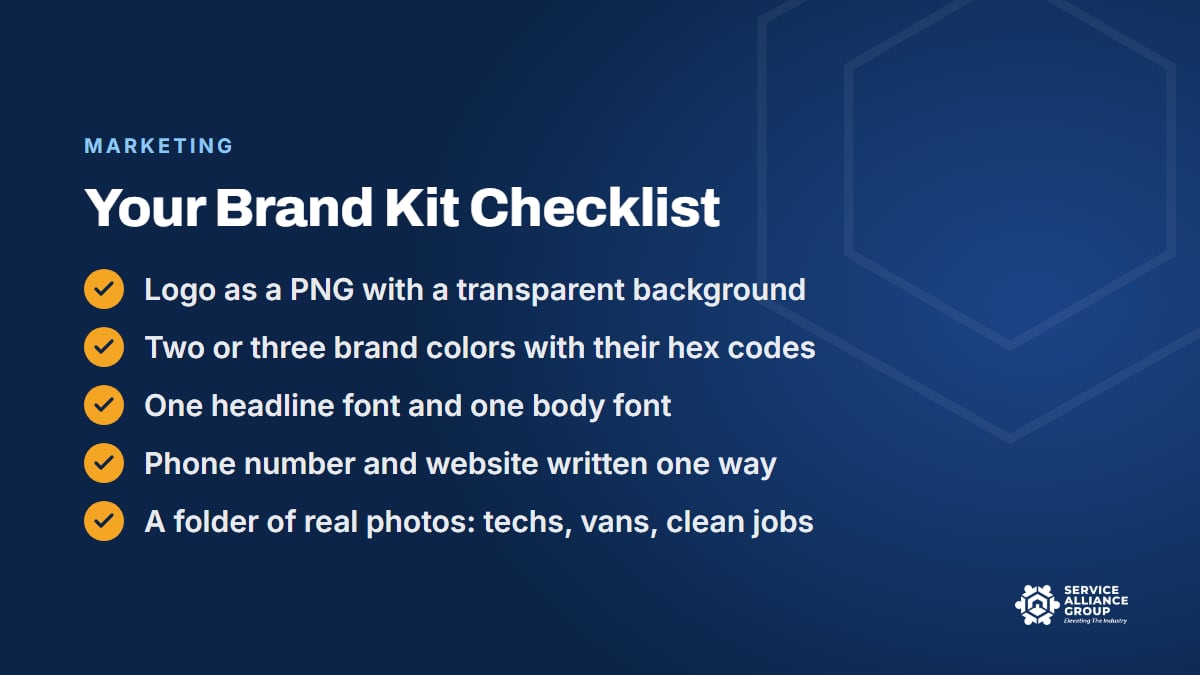
The logo. Get the original files from whoever made it. You want a PNG with a transparent background at minimum, plus a vector file (SVG, EPS, or PDF) if one exists, because it scales to a yard sign without going fuzzy. A logo screenshotted from your website with a white box around it makes a colored postcard look cheap fast. If all you have is a small JPG, paying a designer once to redraw it cleanly is money well spent.
The colors. Pick two or three: a main brand color, a dark color for text, and an accent for the phone number and buttons. Write down the hex codes (the six-character codes like #1F3A5F), which you can pull from your logo file or your website, and use them everywhere. Give the same codes to your sign shop and printer and ask to see a proof, because ink and vinyl can shift a color.
The fonts. One headline font and one body font. The test is a yard sign read from the street and a text-message graphic read on a cracked phone screen. Plain, heavy fonts win both. Script fonts lose both.
The details. Decide once how the phone number is written, what the website address looks like, and what your service area line says. Check whether your state or city requires a license number on advertising, and if it does, add it to the kit. Then build a folder of real photos: your techs, your vans, a clean laundry room after a job. A stock photo of a smiling model in a spotless uniform who has never seen a dryer belt looks cheap just as fast.
Give Your Team Access and Lock Down the Templates
The biggest payoff from Canva is that you stop being the only person who can make a post. Add your office manager or CSR, share the brand kit and the photo folder, and then build templates for the pieces you make over and over.
Set up a few folders so nobody hunts for anything:
- Social: job of the week, tip of the week, meet the team, review shout-out
- Print: business cards, door hangers, postcards, flyers
- Field: the before-you-arrive graphic, maintenance plan handout, review request card
- Truck and signs: yard signs, magnets, window decals
Then set one rule for the team: change the words and the photo, never the colors and the fonts. That rule keeps a hundred pieces looking like one company. When the diagnostic fee changes, update the template, not the twelve copies floating around, and tell everyone which file is current.
If you are used to making everything yourself, this is the step that gives you your Sunday nights back. The CSR can build next week's posts between calls. A tech can pull the maintenance handout up on the Canva mobile app in a customer's kitchen.
Designs 1 to 3: Social Posts, Business Cards, and Door Hangers
Start with the pieces that get used every week, because a template you use fifty times a year is worth building carefully.
1. Social posts
Build three templates and rotate them: a job of the week with a photo (ask the customer first, keep their address and face out of it), a plain-language tip, and a meet-the-team card with a tech's photo and first name. Make a square version for the feed and a vertical version for stories. Keep the text short, put the logo small in a corner, and let the photo do the work.
The phone number goes on every graphic. Someone will screenshot the post and send it to their mother. Our guide to social media for appliance repair companies covers what to post and how often, and these templates help keep that work to about thirty minutes a week.
2. Business cards
Front: logo, name, title, phone, website. Back: something worth keeping. A QR code to your Google review link, a line like "Ask about our maintenance plan," or a short list of the brands you service. Use the standard 3.5 by 2 inch size, which Canva has templates for, and print on heavy stock so the card survives a year under a fridge magnet.
Every tech carries a stack. Leave two at every job: one for the customer and one for the neighbor they will mention you to. The card is the cheapest referral tool you own, and our post on boosting customer referrals explains how to make the ask that goes with it.
3. Door hangers
The door hanger is for the five houses on either side of the job you just finished. "We just finished a dishwasher repair on your street" is the whole pitch. Add what you fix, the brands you service, your fee if you publish it, the phone number, and a QR code to your booking page. Keep the back simple: a short list of signs it is time to call about a fridge, a washer, or a dryer, without turning it into a repair manual.
Techs hang them when a job finishes early and the next window has not opened. Ten minutes on a slow afternoon covers a block. Hang them on the door, never in a mailbox, because mailboxes are for postage-paid mail only. Before you print a thousand, check your city's rules on door-to-door advertising and respect any no-soliciting signs, because the neighbor you annoy talks as much as the one you help.
Designs 4 to 6: Postcards, Flyers, and Review Request Cards
These three go in the mail, on the counter, and in the customer's hand. Keep each one to a single clear message and a phone number big enough to read.
4. Postcards
Your past customers are the best list you own, and a postcard is how you stay in the kitchen drawer. "It's been a year since we fixed your washer. Is anything else acting up?" works. So does a seasonal reminder to schedule a maintenance visit before the holidays put the oven and the dishwasher through their busiest week. A second version can go to new homeowners in your best zip codes, since a move is when people discover the dryer the previous owner never mentioned.
Design the front like a billboard: one photo of a real tech, one sentence, the phone number. Leave the mailing side clean, with room for the address and postage. Common sizes like 4 by 6 or 5 by 7 inches keep printing simple, and postage depends on size, so ask your printer or the post office before you settle on one.
5. Flyers
A flyer still works in the places where people decide who to call: property management offices, leasing offices at apartment complexes, real estate offices, senior centers, parts counters, and community boards. One page: what you fix, the brands, the service area, the fee, the phone number, and a QR code. Use a real photo, not clip art of a wrench, and ask before you pin anything to someone else's wall.
Make a second version for property managers with what they care about: response time, invoicing, and handling multiple units. Print twenty at a time and hand them over in person. The conversation at the front desk does more than the flyer, but the flyer is what stays on the wall after you leave.
6. Review request cards
The tech leaves this card with every customer at the end of every completed job. Front: "How did we do? We'd appreciate an honest review," with a QR code straight to your Google review link. Back: a short thank-you from the owner and the office phone number.
Keep the ask the same for everyone. Google's rules on fake engagement in reviews prohibit offering anything in exchange for a review, selectively soliciting positive reviews, and discouraging negative ones. So the card goes to every customer, asks for an honest review, offers nothing in return, and never suggests calling you instead of posting.
If your Google Business Profile is not set up to take reviews yet, fix that first with our post on Google Business Profile for appliance repair. The free 5 Star Service Calls course teaches the tech how to ask for the review, so the card is not doing all the work.
Designs 7 to 9: Maintenance Handouts, Arrival Graphics, and Yard Signs
The last three travel with the job: a handout that brings the customer back, a text graphic that makes the first knock easier, and a sign that tells the street who did the work.
7. Maintenance plan handouts
If you sell a maintenance plan, the tech needs something to hand over after explaining it, because nobody remembers a verbal pitch by dinner. One page: which appliances get checked and how often, what the plan costs (your price, your terms), what members get (priority scheduling, whatever you offer), and how to sign up by QR code or phone. Make a printed version for the kitchen counter and a PDF the tech can text from the truck.
Write it in plain words. "We come out twice a year, check these eight things, and you get first pick of the schedule when something breaks" beats a bulleted list of features. The tech explains, the handout reminds, and the CSR follows up in a week. Before you print, have an attorney look over the plan terms once, since rules for service agreements can vary by state.
8. The before-you-arrive text graphic
This is a small image sent with the confirmation or the on-my-way text: the tech's photo and first name, the van, and what to have ready (the model number, a clear path to the appliance, pets put away). Put the arrival window in the text itself, and add the fee reminder to the graphic so there is no surprise at the door. Customers who know who is knocking tend to open the door faster and start the conversation warmer.
Make one template and save a copy per tech. The CSR sends the right one with each booking. Our post on the appliance repair service call playbook covers the whole visit from that text to the review ask, and this graphic fits right at the start.
9. Job-site yard signs
"Appliance repaired here" with your logo and a phone number readable from the street. At the end of the job, ask the customer if you can leave it in the yard for a week, and if they hesitate, let it go. Print on corrugated plastic with H-stakes, keep the design to three elements (logo, one line, phone number), and check HOA and city rules before you plant one.
The same design, set up at a new size, becomes a truck magnet for a van you have not wrapped yet or a window decal for the office. Ask the sign shop for the exact size and file type they want, and this is where a vector logo pays for itself.
Printing, Sizing, and Keeping It Consistent
Digital pieces are forgiving. Print is not, so a few habits save you from a box of five hundred cards with a typo.
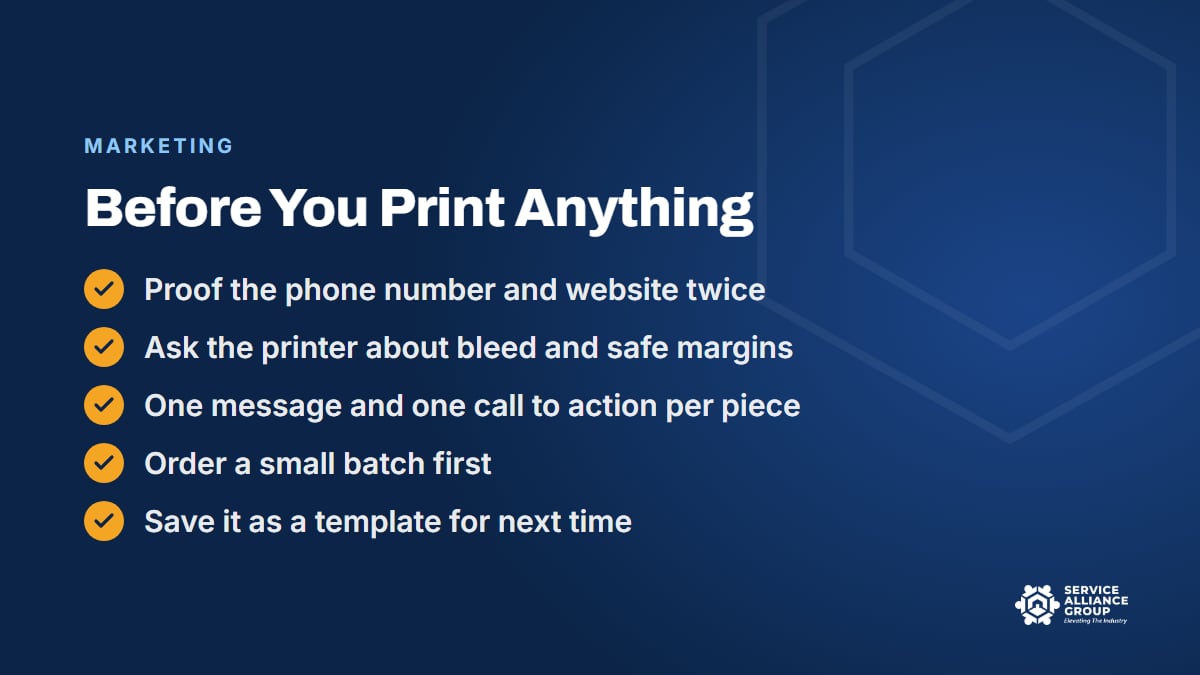
Start every print piece from a template at the real size (business card, postcard, flyer, door hanger) rather than resizing a social post. Export as a PDF for print, and ask your printer about bleed and safe margins before you send the file. A local print shop will usually show you a proof and can tell you in one look if the file will print badly. Online printers can cost less for large runs once you know a design works.
Proof twice, and have someone else read it. Phone number, website, fee, service area. Then order a small batch. Your fee will change, a tech will leave, and your service area will grow. Small batches keep you from throwing money away.
Consistency is the whole point. Same logo placement, same colors, same phone number format, same photo style. If you want the team to keep it that way after you stop checking, write your brand rules down as a one-page SOP. The rules fit on an index card: these colors, these fonts, this number, real photos only. For the rest of your marketing procedures, the SOP Library has a Marketing category among its 13 categories of editable documents.
Canva Design Training: From First Login to Branded Templates
Everything in this post can be learned by clicking around. If you would rather be shown, Canva Design Training in our member portal walks you from your first login to a set of reusable branded templates in 40 short lessons.
It covers the free and paid features, the mobile app, setting up a brand kit, giving your team access, and building business cards, posters, flyers, and postcards. It suits the owner or office manager who will actually make the marketing materials, and it is sold on its own, or as part of monthly All-Access with every other course and the SOP Library.
For where these pieces fit in the bigger picture, The Organic Growth Engine covers everything a shop should do before spending on ads: being found without paying, being trusted before they call, a website that holds up, a human who answers and books, and customers who come back and refer. Most of the designs above help with that second layer: being trusted before they call.
Frequently Asked Questions
Is Canva free?
Canva offers a free plan and paid plans, and what each plan includes can change, so check Canva's website for the current details before you count on a specific feature. A practical approach is to start on the free plan, build a few of the pieces in this post, and upgrade only when you run into something you need that your plan does not include.
Do I need a professional logo before I use Canva?
You need a clean logo file, which is not the same as an expensive one. If you have a logo, get the original files with a transparent background. If you only have a small blurry image, have a designer redraw it once. If you have no logo at all, a simple wordmark in a heavy font and your brand color will look better than clip art while you decide.
What sizes should I use for print?
Use the standard sizes your printer expects: 3.5 by 2 inches for business cards, 4 by 6 or 5 by 7 for postcards, and 8.5 by 11 for flyers. Door hangers vary, so ask your printer for their template size. Start each design at the right size in Canva, export as a PDF for print, and confirm bleed and margins with the printer before the full run. If the piece goes in the mail, check the postage for that size first.
Can my office manager make marketing materials without breaking the brand?
Yes, if the setup is done first. Share the brand kit, the photo folder, and the templates, then set the one rule: change words and photos, never colors and fonts. Review the first few pieces together, save the good ones as templates, and let them run. After that, the templates and that one rule keep the brand consistent without you checking every post.
Where do these designs fit in a marketing plan?
They are the trust layer. People find you through Google, reviews, and referrals, then decide whether to call based on how you look and sound. Consistent, real-photo marketing materials make that decision easier. For the rest of the plan, our post on marketing an appliance repair business without spending a fortune covers the low-cost side.
Pick one design from the nine, build it this week, and save it as a template. The second one goes faster, and by the ninth your shop will look like one company everywhere a customer sees it.